 Tweet
 How to Use RDP - Best Remote Desktop Software for Windows, Mac, & Linux
Remote desktop is an extremely useful tool to use with Windows VPS hosting. With RDP, you can interact with a remote desktop VPS like your own computer. You will have access to a complete Windows desktop and GUI that you are familiar with, even while the VPS is hosted on a remote computer and remote network.
One of the most useful features of RDP (remote desktop) is that it can be used with any OS, so you can Windows use RDP on your Windows, Mac OS X, or Linux computer. The following is a basic intro explaining how to use RDP with a VPS, and our recommendations for best remote desktop apps to use with your OS. If any of the links below are broken, you can find updated links in our How to Connect to Windows VPS guide.
Connecting from Windows (All Versions)
One of the most common, and probably the best remote desktop client is called*Remote Desktop Connection (RDC). It is included with most versions of Windows.*
1.To launch RDC, open the Start menu of your computer and search for "Remote Desktop Connection". (If you can’t find it, you can start it manually with Start > Run > mstsc.exe).
Enter your Windows VPS details as follows:
Computer: [IP address of your RDP VPS or Windows Server.]
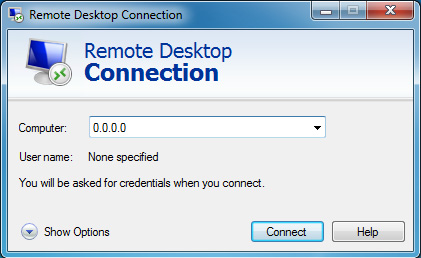
Click Connect.
You may see a warning message. This happens because the security certificate used by your Windows VPS is self-generated and self-signed. It does not mean your server is insecure, so feel free to select “Don’t ask me again.”
Click Connect.
2. RDC will prompt for your password. Enter the following:
Username: Administrator
Password: Password is supplied by your Windows VPS provider.

Click OK.
After connecting, your Windows Server’s remote desktop will appear. It should look something like this:

Now you can use the remote desktop like any other PC. When you close the window, the RDP VPS will remain online, even if you disconnect from the internet or turn off your computer.
Connecting from Mac OS X
Mac OS X users can also use Microsoft’s official RDC program, one of the best remote desktop apps for OS X. It is available for download here: Mac RDP Downloads
We also recommend the open-source application CoRD for OS X, which can be downloaded from here. The required login credentials will be the same as above.
Connecting from Linux
There are several RDP clients available for Linux, rdesktop being one of the most popular.*The required login credentials will be the same as above.
Connecting from Android & iPhone
Search the Android Market or App Store for “RDP” and select a remote desktop app. The required login credentials will be the same as above. Some of our favorites are:
Hopefully this guide has been useful. Please post questions if you have any!
One of the most useful features of RDP (remote desktop) is that it can be used with any OS, so you can Windows use RDP on your Windows, Mac OS X, or Linux computer. The following is a basic intro explaining how to use RDP with a VPS, and our recommendations for best remote desktop apps to use with your OS. If any of the links below are broken, you can find updated links in our How to Connect to Windows VPS guide.
Connecting from Windows (All Versions)
One of the most common, and probably the best remote desktop client is called*Remote Desktop Connection (RDC). It is included with most versions of Windows.*
1.To launch RDC, open the Start menu of your computer and search for "Remote Desktop Connection". (If you can’t find it, you can start it manually with Start > Run > mstsc.exe).
Enter your Windows VPS details as follows:
Computer: [IP address of your RDP VPS or Windows Server.]
Click Connect.
You may see a warning message. This happens because the security certificate used by your Windows VPS is self-generated and self-signed. It does not mean your server is insecure, so feel free to select “Don’t ask me again.”
Click Connect.
2. RDC will prompt for your password. Enter the following:
Username: Administrator
Password: Password is supplied by your Windows VPS provider.
Click OK.
After connecting, your Windows Server’s remote desktop will appear. It should look something like this:
Now you can use the remote desktop like any other PC. When you close the window, the RDP VPS will remain online, even if you disconnect from the internet or turn off your computer.
Connecting from Mac OS X
Mac OS X users can also use Microsoft’s official RDC program, one of the best remote desktop apps for OS X. It is available for download here: Mac RDP Downloads
We also recommend the open-source application CoRD for OS X, which can be downloaded from here. The required login credentials will be the same as above.
Connecting from Linux
There are several RDP clients available for Linux, rdesktop being one of the most popular.*The required login credentials will be the same as above.
Connecting from Android & iPhone
Search the Android Market or App Store for “RDP” and select a remote desktop app. The required login credentials will be the same as above. Some of our favorites are:
- PocketCloud (Android)
- Microsoft RDC
Hopefully this guide has been useful. Please post questions if you have any!


Comment